
How to Fix Out-of-Sync Subtitles in Premiere Pro (3 Ways)
Subtitles ahead or behind your dialogue in Premiere Pro? Here are three proven fixes — including a free in-browser SRT shifter and a one-click AI workflow that keeps captions in sync from the start.
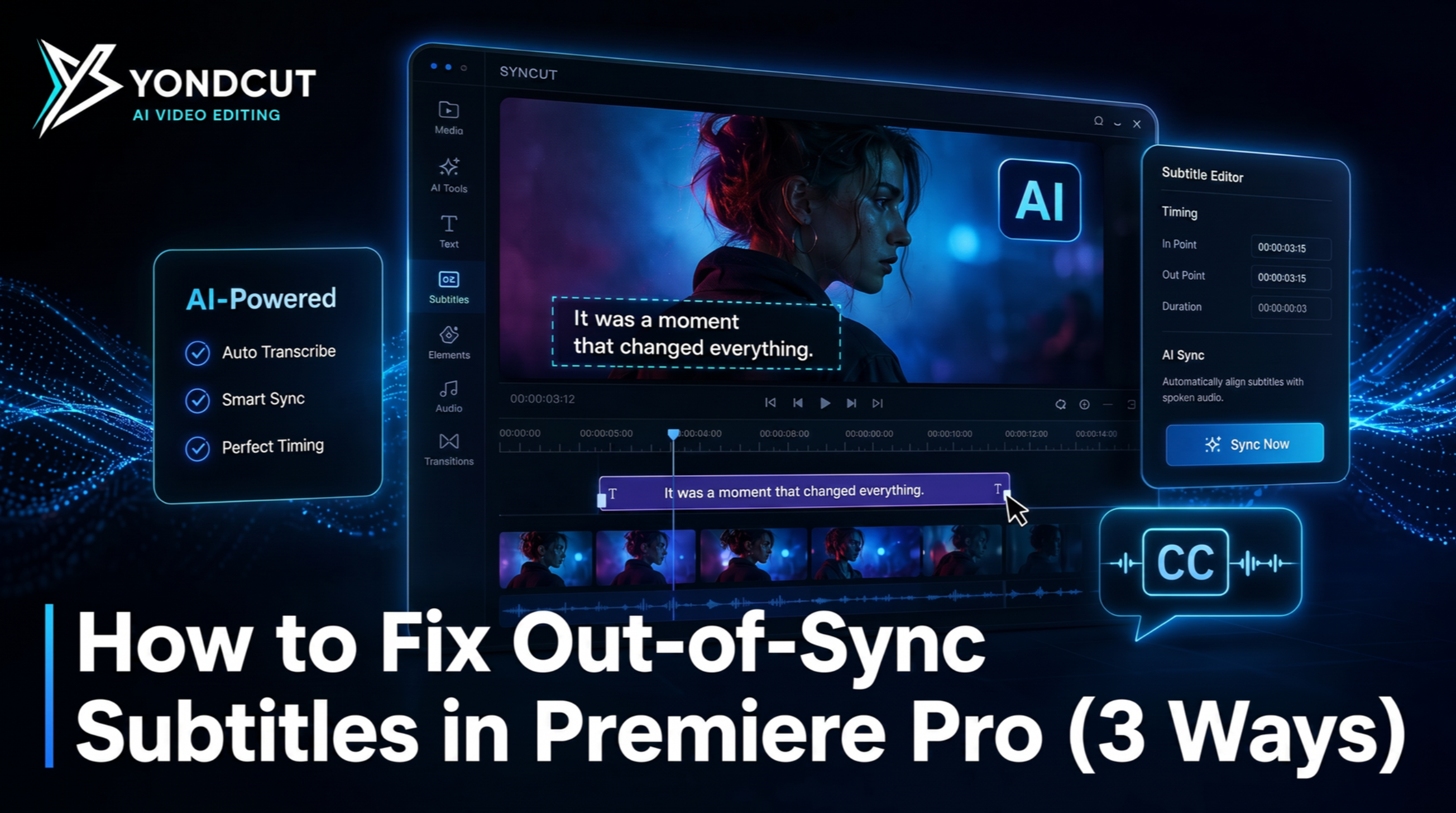
There are few things more annoying than reviewing a delivery and realizing the subtitles are running half a second behind the dialogue. In Adobe Premiere Pro this happens for a handful of common reasons — frame-rate mismatch, a trim at the head of the timeline, or a transcription that was generated from a different cut. Whatever the cause, you don't need to retime every cue by hand.
This post walks through three ways to fix out-of-sync subtitles in Premiere Pro, from the fastest (a free in-browser tool) to the most automatic (AI-generated captions that don't drift in the first place).
→ Just need the tool? Jump to the free SRT timing shifter.
Why subtitles drift in Premiere Pro
Subtitles drift for predictable reasons. Knowing which one you're facing tells you which fix to use:
| Symptom | Likely cause | Recommended fix |
|---|---|---|
| Subs are exactly the same amount late or early on every line | Constant offset (trim at head, video re-encoded at different fps) | Bulk shift (Way 1 or Way 2) |
| Subs drift progressively (fine at start, way off by the end) | Frame-rate mismatch — your SRT was made at 29.97 but the video plays at 30 (or vice versa) | Re-time at the correct fps |
| Only some lines are off | Automatic transcription mis-segmented a few cues | Edit individual cues, or re-transcribe with Yond Whisper |
| Subs were generated from a different cut | The transcript was made against an earlier version of the timeline | Re-transcribe against the current cut |
In the wild, about 80% of "subs out of sync" complaints are a constant offset. That's the easy case.
Way 1 — Bulk shift with a free in-browser tool (fastest)
For constant-offset drift, the absolute fastest path is shifting every cue by the same amount of milliseconds. Our free SRT timing shifter does exactly this:
- Open the SRT timing shifter
- Paste your SRT or drag the file in
- Pick direction: − Earlier if subs are late, + Later if subs are early
- Set the offset in seconds + milliseconds (typical values: 100–1500 ms)
- Copy or Download the corrected file
- Re-import into Premiere Pro
The tool runs entirely in your browser — no upload, no signup, no AI cost. Every timestamp in the file gets adjusted by the same amount.
Why this is the fastest fix: retiming a 600-cue subtitle file by hand in Premiere is ~45 minutes. The shifter does it in 4 seconds.
Way 2 — Re-anchor the caption track in Premiere Pro
If you'd rather stay inside Premiere, you can shift the entire caption track on the timeline:
- Click the caption track header to select the whole track
- Hold Shift + Right Arrow (or Left Arrow) to nudge in 5-frame increments
- Use Right Arrow alone for 1-frame nudges
This works for constant-offset drift but doesn't scale — you're aligning visually, not numerically. If you need to shift by exactly 327 milliseconds for delivery accuracy, the in-browser tool wins.
A second trick: use Premiere's Slip tool (Y) on the caption clip to slide the captured timing within the clip without moving the clip itself. Slip is great for fine-tuning the head of an interview where the dialogue starts a beat after the cue begins.
Way 3 — Generate captions in sync from the start (AI workflow)
The fix that never drifts is the one where the captions are generated directly against your current timeline audio. Yond Whisper in YondCut does this locally with the Whisper AI model — no upload, no per-minute fee.
Workflow:
- Open your Premiere Pro sequence
- Open YondCut → Yond Whisper
- Click Generate Transcript — YondCut flattens the timeline audio (including nested sequences) into a single 16 kHz WAV and runs Whisper on it locally
- Export as SRT, or pass it directly to Yond Captions to drop styled caption clips on the timeline
Because the transcript is built from the cut you're editing right now, the timestamps match exactly. You don't need to shift anything later — there's nothing to shift.
For typical podcast / interview content on a modern laptop, this takes ~3 minutes for a 1-hour video. The transcript is searchable, exportable, and per-line editable inside Premiere.
Common gotchas
The first 30 seconds line up but everything drifts after Frame-rate mismatch. Your SRT was made at one fps and is playing back against a video at another. A bulk shift won't fix this; you need to re-time at the correct fps or re-generate the SRT from the current cut.
My subs jump from late to early between scenes Premiere split the caption track or there's a hidden second caption track underneath. Open the Timeline panel menu → Captions → Show Both Tracks and check whether you're seeing overlapping captions from two tracks.
Bulk shift sent some cues to negative timestamps
The SRT timing shifter clamps negative timestamps to 00:00:00,000 so the file stays valid. Premiere imports it without complaint, but the first cue may now overlap with subsequent ones — review the head.
The dialogue audio itself is offset from picture (lip-sync issue, not captions) That's an A/V sync problem, not a subtitle one. Right-click the audio clip → Render and Replace, or use the Synchronize… dialog (Clip → Synchronize) with the audio's slate.
When to use which method
| Situation | Best fix |
|---|---|
| You already have a delivered SRT and it's just a touch off | Way 1 — the SRT timing shifter |
| You're inside Premiere and need a quick visual nudge | Way 2 — track-level shift / Slip tool |
| You're starting from raw audio (no SRT yet) | Way 3 — Yond Whisper generates it in sync from the start |
| Your subs drift progressively | Way 3 — regenerate from the current cut |
| You also need styled captions on the timeline | Way 3 plus Yond Captions |
FAQ
Can I shift only some lines, not all? The in-browser tool does a uniform shift across the whole file. For per-line edits, open the SRT in any text editor — each cue's start and end timestamps are visible plain-text.
Will the shifted file work in YouTube Studio? Yes. SRT is SRT — YouTube doesn't care whether it was edited by hand or by tool.
Why does Whisper produce subs in sync but the SRT I downloaded from Rev was off? Rev (and most cloud transcription) often transcribes against a re-encoded upload of your video. If the platform converted your 23.976 fps source to 30 fps on the way in, the timestamps come back at 30-fps time and drift against your original.
Is the SRT timing shifter free? Yes — fully free, no signup, no upload. It runs entirely in your browser.
Next steps
- Fix the file in 4 seconds: open the SRT timing shifter
- Generate captions in sync from scratch: see Yond Whisper
- Drop styled, animated subs on your timeline: see Yond Captions
- Need a different format too? SRT ↔ VTT ↔ ASS converter
YondCut Team
May 31, 2026