
SRT to VTT Converter Guide: Free, In-Browser, No Upload (2026)
Need to convert subtitles between SRT, VTT and ASS? Here's how the formats differ, when to use each, and a free in-browser converter that never uploads your files.
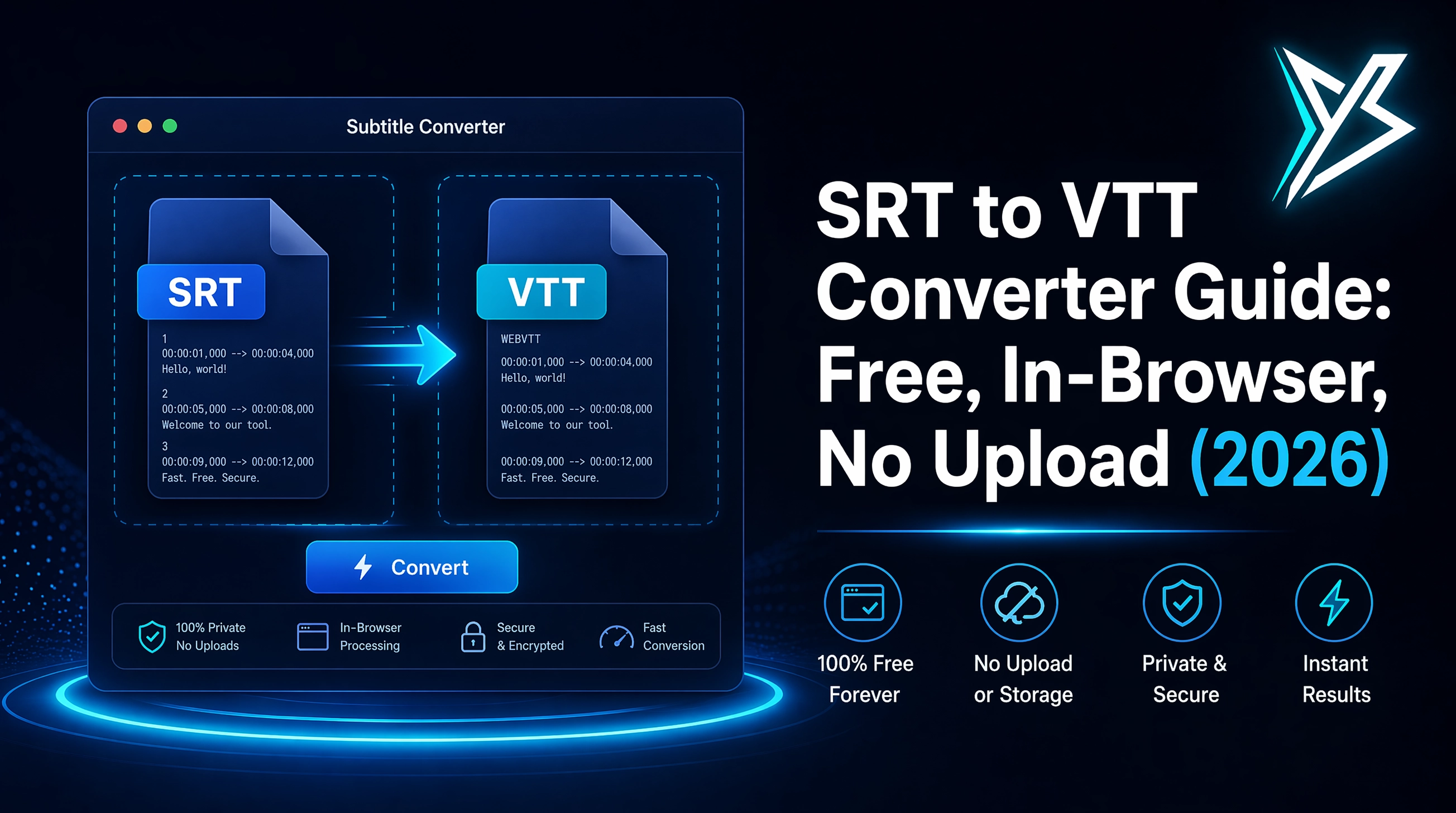
You've exported subtitles from your edit. The CMS asks for WebVTT, not SRT. Your colleague sent you a .ass file. Your video player chokes on the file you have. Subtitle format conversion is the small annoyance that derails an otherwise-fast publishing day.
This guide explains how the three most-common subtitle formats differ, when to use each, and how to convert between them in seconds using a free, browser-only tool. No uploads, no sign-up, no cost.
→ Skip ahead to the free SRT ↔ VTT ↔ ASS converter if you just want the tool.
The three subtitle formats you'll meet most
There are dozens of subtitle formats, but in a normal creator workflow you'll only run into three:
SRT — SubRip Subtitle
The plain workhorse. Numbered cues with a start time, end time, and the text:
1
00:00:01,000 --> 00:00:04,000
Welcome to YondCut — let's edit faster.
Timestamps use comma as the millisecond separator. No styling, no positioning, just text. Created by Adobe Premiere Pro, DaVinci Resolve, YouTube Studio, and pretty much every NLE on Earth. If you've ever exported captions, you've made an SRT.
WebVTT (.vtt)
The web-native format mandated by HTML5 video. Looks almost identical to SRT but with two key differences:
WEBVTT

00:00:01.000 --> 00:00:04.000
Welcome to YondCut — let's edit faster.
The file must start with the WEBVTT header line, and timestamps use a period instead of a comma. Some web players are strict about this — pass them an SRT renamed to .vtt and they'll refuse to render captions.
WebVTT supports more than SRT: positioning hints (align:start, line:90%), inline tags (<c.classname>, <i>), and chapters. Most platforms ignore the fancy bits and just render the text.
ASS / SSA — Advanced SubStation Alpha
The format you reach for when styling matters more than portability. Used by fansubbers, anime distributors, and karaoke editors. ASS supports per-character font, color, size, stroke, animation, and exact positioning — it's effectively a tiny scripting language for subtitles.
[Events]
Format: Layer, Start, End, Style, Name, MarginL, MarginR, MarginV, Effect, Text
Dialogue: 0,0:00:01.00,0:00:04.00,Default,,0,0,0,,{\b1}Welcome{\b0} to YondCut
Power, but at a cost: most video players don't render ASS natively, and most NLEs can't import it.
Which format should you use?
A quick decision table:
| Use case | Best format |
|---|---|
| Premiere Pro / DaVinci Resolve native import | SRT |
| Web player (HTML5 video, Vimeo, hosted player) | WebVTT |
| YouTube upload | SRT or VTT — YouTube accepts both |
| Twitch / streaming overlays | WebVTT with positioning |
| Styled/animated subs for distribution | ASS (or burn-in via Yond Captions) |
| Maximum portability across platforms | SRT |
| Plain transcription for archives | SRT |
The summary: default to SRT unless a specific platform forces your hand.
How to convert SRT to VTT in your browser
The fastest, safest way is a client-side converter that runs entirely in your browser. Our free SRT to VTT converter does this without uploading your file:
- Open the SRT converter tool
- Drag your
.srt(or.vtt, or.ass) onto the input panel — or paste raw text - Pick the output format (SRT, VTT or ASS)
- Click Copy or Download
The tool auto-detects the input format, parses the cues, and re-emits in the format you picked — all in JavaScript, in the browser, in milliseconds. Your subtitles never reach a server.
How to convert SRT to VTT manually
If you ever need to do it by hand, the conversion is genuinely two operations:
- Prepend
WEBVTT\n\nat the top of the file - Replace every
,in timestamps with.(only in timestamps, not in the dialogue lines)
So 00:00:01,000 --> 00:00:04,500 becomes 00:00:01.000 --> 00:00:04.500. Save with the .vtt extension. Done.
For SRT → ASS or ASS → SRT, the conversion is significantly more involved (different structure, optional style metadata to add or strip), so a tool is the saner choice.
Common SRT / VTT problems and fixes
"My subtitles are out of sync by exactly half a second"
The video and the subtitles came from sources with slightly different start points. Shift every cue by the same offset using our free SRT timing shifter.
"Some characters render as ?? or boxes"
Encoding issue. Make sure the file is saved as UTF-8 (not UTF-16, not Windows-1252). Most modern editors default to UTF-8; older Windows Notepad sometimes adds a BOM that breaks some players — re-save as UTF-8 without BOM.
"The web player rejects my file"
You probably have an SRT renamed to .vtt without the conversion. Use the steps above (add the WEBVTT header, swap commas for periods).
"My ASS subtitles lost their styling"
When you convert ASS to SRT or VTT, the styling info (font, color, position, animation) is discarded because the target formats don't support it. If you need styled subs in your edit, generate them directly on the timeline with Yond Captions in the YondCut Premiere Pro plugin — they're animated, styled, and don't depend on file format at all.
"I have a transcript but no timing"
You need a transcription tool, not a converter. Yond Whisper runs locally, transcribes your timeline audio with accurate per-line timestamps, and exports a clean SRT.
When the converter isn't enough
A converter only translates between formats. If your captions are wrong (mis-timed, missing words, no styling on the timeline), you need to fix the source. The honest hierarchy:
- Mis-timed captions → SRT timing shifter
- No captions yet → Yond Whisper for transcription
- Plain captions, want styled → Yond Captions for timeline placement
FAQ
Is the conversion 100% lossless? For SRT ↔ VTT: yes for text and timestamps. WebVTT-specific features (positioning, classes) are stripped on the way to SRT because SRT doesn't support them. ASS → anything strips ASS styling.
Will Adobe Premiere Pro import a VTT file? Premiere prefers SRT for captions. If you have VTT, convert it back to SRT and Premiere will import it as a caption track without complaint.
Can YouTube use either? Yes — YouTube Studio accepts SRT, VTT, SBV, and a few legacy formats on upload.
Is the in-browser tool truly private?
Yes. There's no fetch() or upload anywhere in the converter. Files are parsed and re-emitted by JavaScript that runs in your tab.
Are there file size limits? Practically no. We've tested with multi-hour transcripts (~50,000 cues). The browser handles it.
Next steps
- Use the SRT ↔ VTT ↔ ASS converter right now — no signup
- Off-sync subs? Try the SRT timing shifter
- Need to generate subs from scratch? See Yond Whisper
- Want styled subs on your Premiere timeline? Yond Captions
YondCut Team
May 31, 2026