
Video Aspect Ratio Guide: 16:9, 9:16, 1:1 & More for 2026
Every modern video creator delivers in multiple aspect ratios. Here's the complete guide — what 16:9, 9:16, 1:1, 4:5 and 21:9 mean, when to use each, and how to reframe without losing your subject.
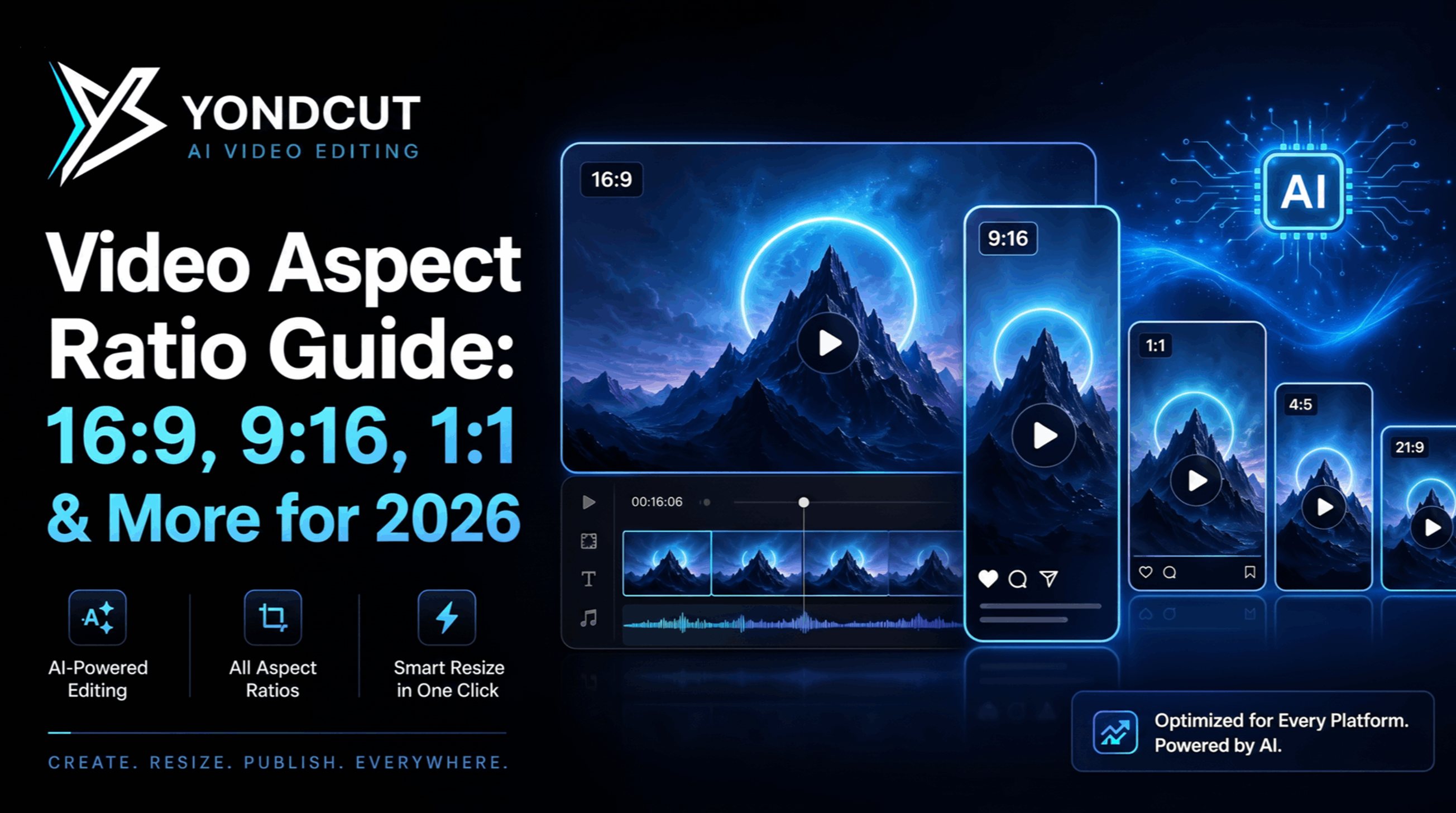
You shot in 16:9. The client wants TikTok at 9:16, an Instagram feed cut at 4:5, and an Instagram post at 1:1. Three deliverables, three reframings, and probably some math you'd rather not do. This guide makes that math go away — and shows you how to reframe a horizontal video for vertical platforms without manually keyframing the position of every subject.
→ Skip to the tool: the free aspect ratio calculator.
What "aspect ratio" actually means
An aspect ratio is the relationship between a frame's width and its height. 16:9 means the frame is 16 units wide for every 9 units tall — a slight horizontal rectangle. 9:16 is the same idea flipped: 9 wide, 16 tall — the portrait orientation phones default to.
The ratio is independent of resolution. A 1920×1080 frame and a 3840×2160 frame are both 16:9. The numbers you see are just the simplest integer form (1920÷120=16, 1080÷120=9).
The aspect ratios you'll actually use
In 2026 there are essentially six aspect ratios in play across the creator economy. Knowing what each is for saves you from delivering a vertical Instagram cut to a horizontal-only client:
| Ratio | Where it lives | Typical resolution |
|---|---|---|
| 16:9 | YouTube, web video, podcasts, broadcast | 1920×1080 (FHD), 3840×2160 (4K) |
| 9:16 | TikTok, Instagram Reels, YouTube Shorts, Snapchat | 1080×1920, 2160×3840 |
| 1:1 | Instagram feed, Facebook feed | 1080×1080 |
| 4:5 | Instagram feed (most space allowed before crop) | 1080×1350 |
| 21:9 | Cinematic, ultra-wide editorial | 2560×1080, 5120×2160 |
| 4:3 | Legacy TV, archival footage | 1440×1080, 640×480 |
Use the free aspect ratio calculator to get exact pixel dimensions for any source / target combination — it shows crop, letterbox, and recommended export sizes at once.
Crop vs letterbox vs pillarbox
When you take a 16:9 source and put it in a different frame, you have three options:
Crop / fill
The video fills the entire target frame. Parts of the source are cut off on the long side. No bars. This is what every social platform expects — empty bars look unprofessional on TikTok and Reels.
Trade-off: if your subject is near the edge of the frame, cropping to 9:16 might cut them out.
Letterbox / pillarbox
The whole source is preserved with black bars on the side that doesn't match. Horizontal bars (above and below) are letterbox; vertical bars (left and right) are pillarbox. Useful for archival or preview where you can't lose any detail, but ugly on social.
Reframe with motion tracking
The smart option: crop, but follow the subject as they move. Instead of a fixed crop, the visible portion of the source slides to keep the subject in the center of the target frame.
This is exactly what Yond Resize does in Premiere Pro — it uses Premiere's Sensei AI to track subjects and creates a reframed sequence (16:9 → 9:16, 1:1, 4:5) where the camera follows the action automatically. It's a one-click replacement for keyframing position by hand.
The math: turning 1920×1080 into 9:16
Here's the typical case: you shot a 1920×1080 16:9 podcast and need a 9:16 vertical cut for TikTok.
The target ratio at the same height (1080) is 608×1080 (because 1080 × 9/16 = 607.5, rounded to 608 for an even number). You can also go larger: 1080×1920 matches TikTok's native vertical resolution at the same width.
In crop mode, your 1920×1080 source becomes a 608×1080 crop — you lose ~68% of the horizontal pixels. That's why subjects-near-the-edge get cut off. In letterbox mode, the source is unchanged but lives inside a 1080×1920 frame with black bars top and bottom.
The aspect ratio calculator shows all three (crop, letterbox, recommended export) for any source / target combination.
When you need each ratio
16:9 — The default
Make every project in 16:9 unless you have a specific reason not to. Most footage is shot 16:9, every NLE defaults to 16:9, every long-form platform prefers 16:9. Edit horizontal, reframe vertical.
9:16 — Short-form social
TikTok, Reels, Shorts. The frame is taller than it is wide because that's how people hold phones. Reframing a 16:9 source into 9:16 always loses horizontal pixels — the only question is how much subject motion you preserve. Yond Resize, manual keyframing, or static crop are your three options.
1:1 — Square feed posts
Instagram, Facebook. Square fits more vertical content than 16:9 but doesn't take up as much screen as 9:16. Best for feed posts you want people to see while scrolling without rotating.
4:5 — Instagram's tall feed
The tallest format Instagram allows in the feed without cropping. Almost always the right choice for Instagram feed video because it takes the most screen real estate of any feed-allowed ratio. People scroll past 1:1 faster than 4:5.
21:9 — Cinematic widescreen
Editorial / film look. Adds top and bottom black bars on a 16:9 timeline. Sometimes baked-in, sometimes a delivery requirement. Watch out: if you upload 21:9 to YouTube, YouTube wraps it in additional 16:9 letterbox unless you upload at 21:9 native resolution.
4:3 — Legacy / archival
Old broadcast and SD footage. You'll see this with stock libraries from before ~2010 and with archival home video. Modern uses are mostly intentional ("found footage" look in narrative content).
Common reframing pitfalls
My subject keeps walking out of frame in the 9:16 crop You're using a static crop. Either keyframe the position by hand (slow), or use Yond Resize which tracks subjects automatically.
The text overlays look tiny on 9:16 You scaled the whole sequence — the text scaled with it. Re-do title sizes at the target resolution, not by scaling the original sequence.
Vertical export came out with black bars You exported at a resolution that doesn't match your sequence's aspect ratio. Open Sequence Settings, set the frame size to your target (e.g. 1080×1920), and re-export.
Resolution looks soft after cropping Your source isn't high enough resolution. Cropping a 1920×1080 to 9:16 leaves you with effectively ~608×1080 of actual pixels. If you need a sharp 1080×1920 output, your source should be 4K.
How to reframe quickly in Premiere Pro
The slow way: duplicate your sequence, change the frame size in Sequence Settings, manually scale and reposition every clip, keyframe the position for moving subjects, repeat for every aspect ratio.
The fast way: Yond Resize — pick a target ratio from a preset grid (9:16, 1:1, 4:5, 16:9, etc.), choose a motion-tracking sensitivity, and click Create Reframed Sequence. Premiere's Sensei AI re-keyframes the position of every clip across the timeline. One sequence per target ratio, generated in one click each.
FAQ
What's the difference between 4:5 and 9:16? 4:5 is shorter (height-to-width = 1.25) — used for Instagram feed posts. 9:16 is taller (height-to-width ≈ 1.78) — used for full-screen vertical (TikTok, Reels, Shorts). You usually deliver both for a campaign.
Should I shoot vertical or shoot horizontal and reframe? Shoot horizontal at 4K and reframe with motion tracking. You get one master that delivers to every aspect ratio. Shooting native vertical limits your repurposing options.
Does YouTube prefer 16:9 or 9:16? Main YouTube prefers 16:9. YouTube Shorts is 9:16. Same channel, different feeds — both feeds are first-class. Upload both versions.
What pixel dimensions should I export at? Use the aspect ratio calculator. For most short-form: 1080×1920 (9:16), 1080×1080 (1:1), 1080×1350 (4:5). For YouTube: 1920×1080 or 3840×2160.
Are aspect ratios just for video? No — every visual medium has them. Photo sensors, print ads, billboards, posters, and television all follow aspect ratios. The same math applies; only the typical numbers change.
Next steps
- Free aspect ratio calculator — get exact pixel dimensions for any source / target combo
- Yond Resize — auto-reframe with subject tracking in Premiere Pro
- Best Premiere Pro extensions for 2026 — see how Yond Resize compares
- How to auto-reframe for TikTok and Shorts (coming soon)
YondCut Team
May 31, 2026