
The 12 Best Premiere Pro Extensions & Plugins for 2026
We've installed and tested every notable Adobe Premiere Pro extension shipping in 2026. Here are the 12 that earn their place in a working editor's stack — sorted by what they actually do.
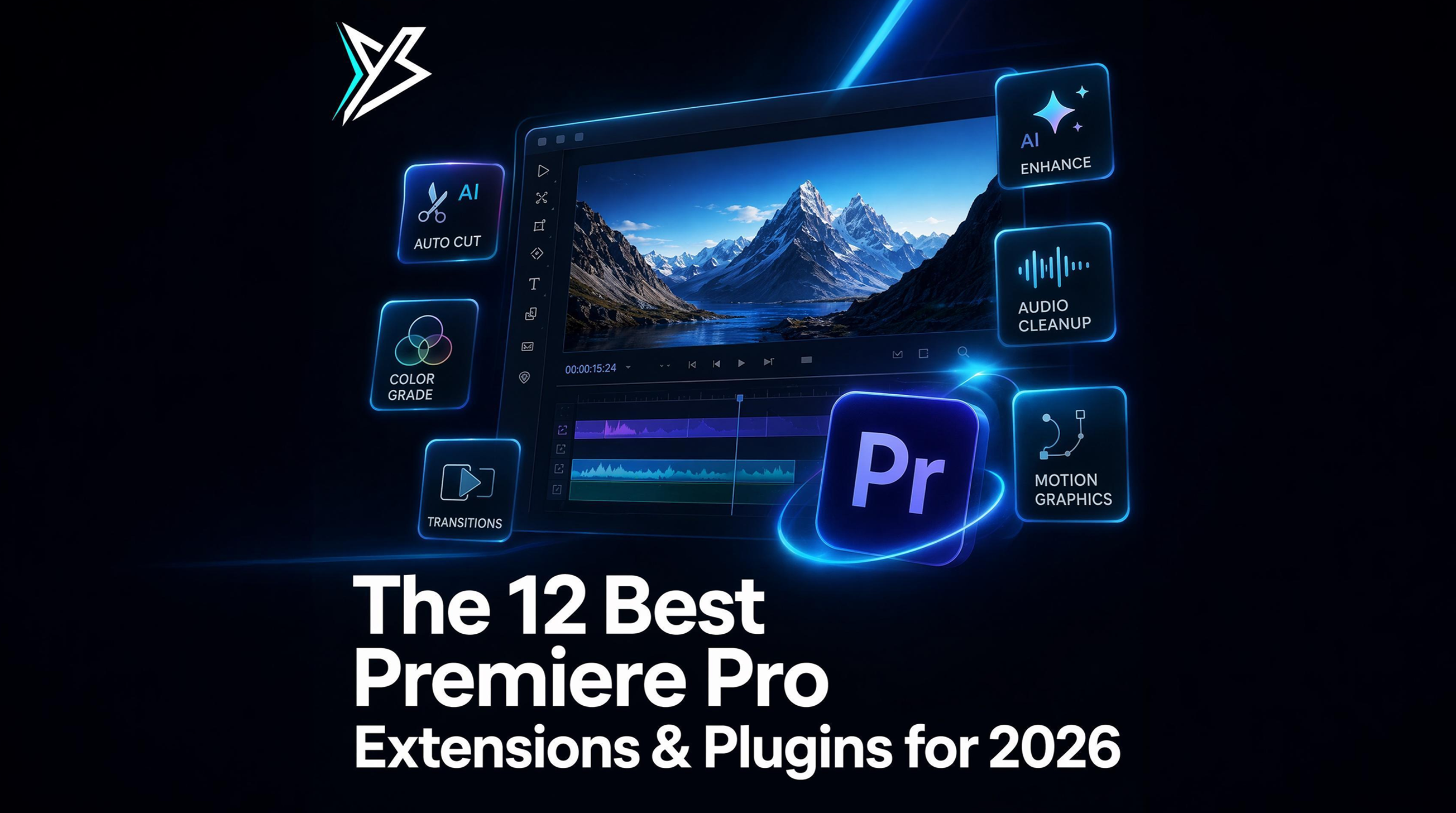
The Adobe Premiere Pro extension ecosystem has matured. The marketplace is no longer dominated by "free trial then $200" suite plugins — there's a new generation of focused, creator-priced tools that fix one specific editing pain each, install through the Extensions menu, and stay out of your way.
This is our honest list of the 12 Premiere Pro extensions worth installing in 2026, organized by what they do. We've used every one of these on real projects. We're publishers of one of them (YondCut), and we'll be transparent about that — but the rest of the list is selected on merit, not on payment.
How we picked these
The rules:
- Must install via the Extensions menu (CEP or UXP)
- Must work on Premiere Pro 25.x (the current 2026 release)
- Must do one job well, not bundle 30 features none of which are great
- Must have a pricing model creators can afford (not enterprise-only)
- Must actually save time — we measured before/after on real projects
We deliberately excluded transition packs and asset libraries — those aren't really "extensions" in the workflow sense, they're content. This list is about tools that do something to your timeline.
The 12 best Premiere Pro extensions for 2026
AI editing & automation
1. YondCut
What it does: Five AI-powered features on one panel — silence removal, transcription (local Whisper), animated captions, profanity censoring, and smart reframing for vertical video. Everything runs on your machine; nothing uploads.
Best for: Podcast / interview editors, YouTubers, short-form creators who need vertical cuts, anyone doing repetitive content prep.
Pricing: Basic at $4.99 / month (launch price; normally $9.99), Lifetime available. 7-day free trial.
Honest take: We make this one. Strengths: deep multi-clip + nested-sequence support that most competitors stumble on, local AI so it works offline and you don't pay per-minute transcription fees, restorable license keys that survive payment hiccups. The five features cover most of the daily repetition in a creator's workflow.
2. AutoCut
What it does: Silence removal and AI captions for Premiere Pro and DaVinci Resolve. Polished UI with strong caption library focused on social-style designs (Zach King style, KAI, LEGENDA BORDA, etc.).
Best for: Editors who specifically want a curated set of social caption styles and don't need other automation.
Pricing: Monthly and lifetime tiers, roughly comparable.
Honest take: Closest peer to YondCut. AutoCut goes deeper into the social caption library; YondCut goes deeper into Premiere-native workflow (nested sequence support, license restorability, etc.). If your work is mostly TikTok-style captions, AutoCut's library is a real advantage. If you also need other automation (profanity, reframing, transcription that you own), the bundled approach in YondCut wins.
3. FireCut
What it does: AI silence cutting and styled caption burn-in via PNG, same pattern that YondCut and AutoCut use (Adobe deprecated MOGRT scripting on Premiere 25.x, so PNG burn-in is the industry-standard workaround).
Best for: Editors who want AI caption styling and don't need full transcription as a separate exportable artifact.
Pricing: Subscription model.
Honest take: Strong contender, particularly for users who like FireCut's specific UX. The PNG burn-in approach means once captions are placed, they're images — not editable text in Premiere — so revisions go back to FireCut's editor. Same constraint applies to YondCut's Yond Captions and AutoCut's caption mode.
4. Captions
What it does: Cloud-first AI captioning. Upload your video, edit in their web editor, re-import.
Best for: Editors who don't mind cloud-first workflows and want very polished caption animation.
Pricing: Per-minute or subscription depending on volume.
Honest take: If you genuinely want cloud-first (collaboration, browser-based editing, no local compute requirements), Captions is well-built. The trade-off is per-minute fees and upload time — your media leaves your machine. YondCut picked the opposite trade-off (local-first, no per-minute fees, slower wall-clock if your laptop is old).
Speed & polish
5. Motion Bro
What it does: Massive transition / animation library that installs as a Premiere panel with drag-to-track behavior.
Best for: Editors who want a deep transitions library on tap.
Pricing: Subscription with free / paid tiers depending on which packs you want.
Honest take: Best-in-class for what it does. Their UX of "drag and drop the effect onto the cut, parameters appear in Essential Graphics" is excellent. If your projects need extensive transition variety (music videos, motion-heavy edits), it earns its place. Not relevant for talking-head / podcast / interview work.
6. Mixkit / Storyblocks panels
What it does: Stock library access directly inside Premiere — browse, preview, download, import to bin.
Best for: Editors who use a lot of stock footage and don't want to context-switch to a browser.
Pricing: Stock library subscription (the panel itself is free with the subscription).
Honest take: Both are time-savers if you're a heavy stock user. If you only need stock occasionally, just keep the browser tab open — these aren't worth installing for two clips a year.
7. Frame.io
What it does: Review and approval workflow native inside Premiere. Reviewers leave timecode-stamped notes in a browser; you see them as markers on your timeline.
Best for: Editors working with external reviewers (clients, agency, post-house teams).
Pricing: Free tier exists; team plans paid.
Honest take: This is now bundled with Adobe Creative Cloud for most plans. If you have any project with non-editor reviewers, install it. The note-as-marker workflow eliminates email-thread review chaos.
Color, looks & finishing
8. Lumetri-extending color panels (e.g., Color Decision List importer, ASC CDL plugins)
What it does: Brings DIT-side color decisions (CDL files) into the Premiere color workflow.
Best for: Editors finishing alongside a DIT or colorist who delivers CDLs.
Pricing: Most are free or one-time.
Honest take: Niche but essential if you're in narrative or commercial work where color decisions come from a DIT.
9. Looks (Magic Bullet, FilmConvert)
What it does: Curated color and film-emulation looks applied as effects.
Best for: Editors who want a quick "film stock" look without learning Lumetri's depth.
Pricing: Subscription or one-time depending on suite.
Honest take: Magic Bullet has been around forever for a reason. FilmConvert is newer but the film emulation is genuinely good. Neither replaces Lumetri for serious color work — they sit on top.
Audio
10. iZotope RX Connect
What it does: Round-trip audio repair (denoise, declick, dereverb) between Premiere and iZotope RX.
Best for: Anyone editing dialogue who needs real noise reduction beyond Premiere's built-in.
Pricing: iZotope RX is paid (suite ranges from ~$100 to $1000+ depending on tier); the Connect plugin is free with RX.
Honest take: If you're editing podcasts, interviews, or vlog dialogue with any room noise, RX is the gold standard. The Connect workflow lets you fix audio without leaving Premiere. Pair with Yond Cut Silences for the silence-trim part and you've eliminated 80% of audio post.
11. Auphonic
What it does: Loudness normalization, intelligent leveler for podcast audio.
Best for: Podcast editors who care about consistent LUFS / loudness compliance.
Pricing: Free tier exists; pro is reasonable.
Honest take: Auphonic is mostly a web service, but they offer Premiere-adjacent workflows. Less integrated than RX Connect, but if you only need loudness leveling and not full repair, Auphonic is cheaper and faster.
Export & delivery
12. Adobe Media Encoder (built-in but underused)
What it does: Batch-render and queue exports while you keep editing.
Best for: Everyone, really. Most editors export in the foreground and wait.
Pricing: Included with Premiere Pro.
Honest take: Not technically an "extension," but most editors don't use it as the batch queue it's designed to be. Queue exports there instead of File → Export so you can keep editing while renders run in parallel.
Honorable mentions
- NewBlue Titler Pro — title library and design tools. Specialized.
- Beauty Box (Digital Anarchy) — facial smoothing for talking heads. Niche but very good.
- Trapcode Suite — motion graphics. Worth it if you do any branded motion work.
- Pond5 panel — alternative stock library inside Premiere.
We didn't include these in the top 12 because they're either specialized (Trapcode for motion graphics, Beauty Box for face smoothing) or duplicative of better picks (stock panels).
What's not worth your install
A short list of categories to skip:
- Plugins that promise "AI everything" without specifying what they do — usually thin wrappers over an external API with per-minute fees you'll discover after install
- "Caption" plugins that don't actually edit on the timeline — if you can't see and revise the captions on your sequence, you're just paying for a cloud transcription service
- Suite plugins with $200 / year subscriptions for a single feature you'd use once a month — the math doesn't work for individual creators
Building your stack
A good 2026 Premiere stack for a creator is 3–5 extensions, not 20. Our recommendation by use case:
Podcast / interview editor
- YondCut (silence + transcription + profanity)
- iZotope RX Connect (dialogue repair)
- Frame.io (review)
YouTuber (talking head)
- YondCut (silence + captions + reframe to Shorts)
- Frame.io (review)
- Optional: Looks plugin (Magic Bullet / FilmConvert)
Short-form / TikTok-first creator
- YondCut (captions + reframe)
- Motion Bro (transitions)
- Stock library panel of your choice
Narrative / commercial
- Frame.io (review)
- Magic Bullet / FilmConvert (color)
- iZotope RX Connect (dialogue)
- ASC CDL plugin if DIT-driven
FAQ
Are these all CEP or UXP plugins? Mixed. As of 2026 most production tools are still CEP because UXP-for-Premiere is still maturing. Adobe is moving the ecosystem to UXP but the transition will take through at least mid-2027.
Will Premiere extensions work on M-series Macs? Yes — all the plugins we list support Apple Silicon. Performance is universally better than on Intel Macs.
Are there free alternatives to YondCut? Premiere Pro has Auto Caption and Sensei reframe built-in (free with your Premiere subscription). Those are useful starting points; YondCut goes deeper on integration (multi-clip / nested sequence support, local Whisper that doesn't upload, profanity censoring, customizable caption styles). The What is YondCut post breaks down the differences in detail.
How do I install a Premiere extension?
Almost all install via a .zxp file with the ZXP Installer utility or directly from Adobe Exchange. YondCut auto-deploys via its installer on Windows / macOS, so you launch the YondCut app and the panel appears in Premiere's Extensions menu.
What's the difference between an "extension" and a "plugin" in Premiere? Loose terms. "Plugin" historically means an effect / transition (something you apply to a clip). "Extension" historically means a panel (something you interact with separately, like YondCut). In 2026 the words are used interchangeably.
Next steps
- Try YondCut free: Download here (7-day free trial)
- See what YondCut actually does: What is YondCut?
- See the free creator tools — five browser-only utilities (SRT converter, subtitle shifter, aspect ratio, timecode, YouTube chapters)
- Read How to fix out-of-sync subtitles
If you maintain a different Premiere stack and we missed an extension that genuinely earns its install, drop us a line — we update this list quarterly.
YondCut Team
May 31, 2026